
Production on the shop TV. Late work first.
Open a private link on any TV in the shop and everyone on the floor sees what is overdue, what is due next and what is waiting, live from your production board. The board is read-only, and you can revoke its link at any time.
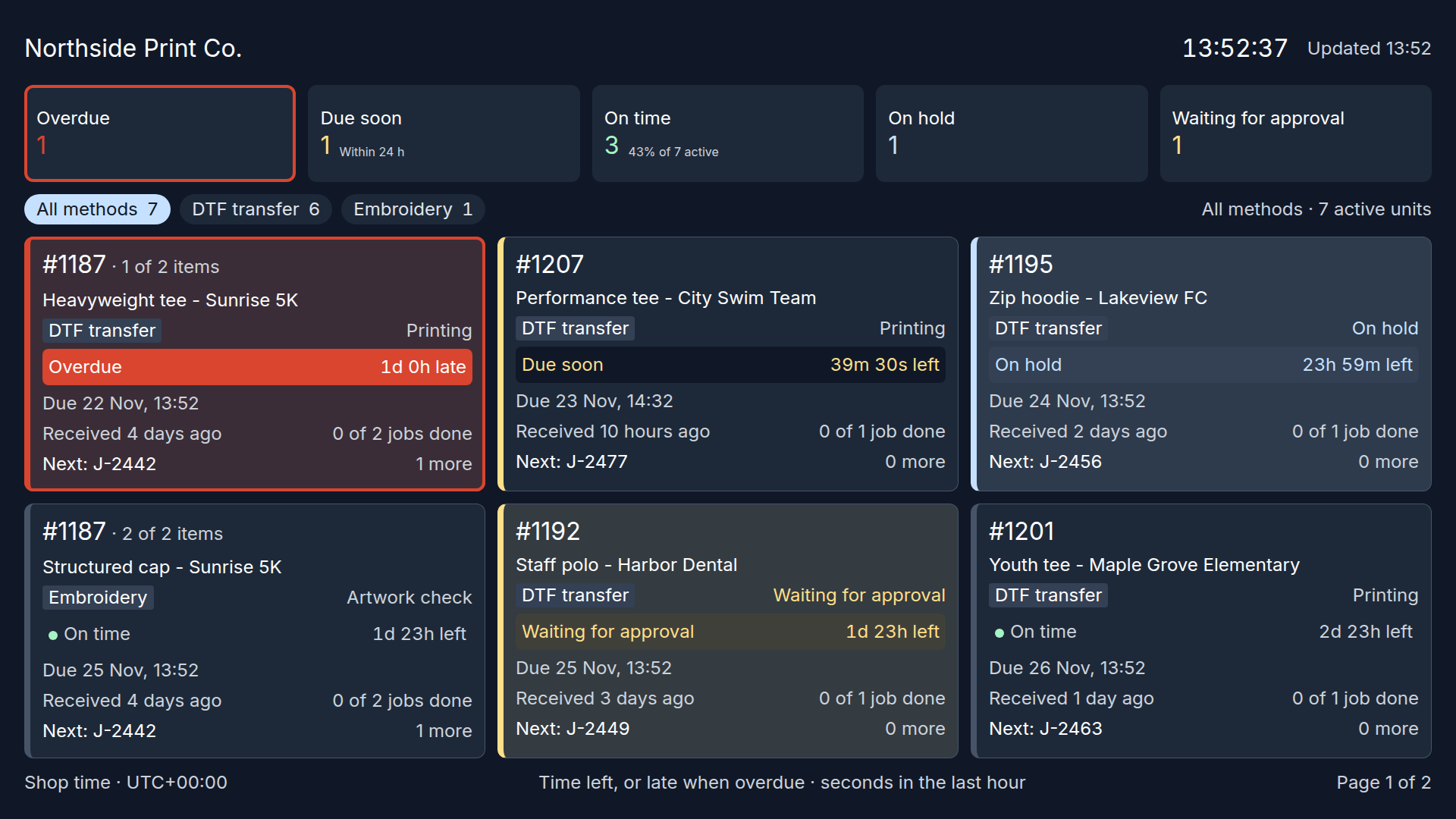
Five counts on top
Overdue, due within 24 hours, On time, On hold and Waiting for approval, each counted across the top of the screen.
One card for each item
Order number, item, print method, stage, time left or how late it is, due date, jobs done and the next job ticket.
Pages turn by themselves
Six cards a page, and the pages turn every 20 seconds. New data arrives every 30 seconds, with no one touching the TV.
One method or all
Press a method, such as DTF transfer or Embroidery, and the cards and counts show only its work.
Exceptions are loud. The rest stays quiet.
Overdue work is the loudest thing on the screen: a red card with how late it is. Work on hold is blue and work waiting for approval is amber. On-time work stays quiet, with a small green dot.
- Time left you can read from the press23h 59m left, or 1d 0h late. Seconds show only within an hour of the due time.
- Made for a TVDrawn for 1920 × 1080 and sharp on a 4K screen, with nothing to scroll.
- Shop timeThe clock and the due times are in your shop's time zone, or the TV's own when the shop has none set.
- When the network dropsThe last data stays on screen under Reconnecting, and the board tries again every 30 seconds.
One link for each screen. Revoke it any time.
In Production, Shop floor, TV board, name the screen and create its link. Copy it and open it on the TV: it is shown once, and the TV needs no sign-in.
- Read-onlyA TV link cannot change a job or open any other page of your Admin.
- Revoke in one clickThe link stops working at once. Within 30 seconds the TV hides the board, and 10 seconds later it says the link no longer works.
- A link for each screenUp to ten links in use, each with its own name and the time it was last opened.
- No money or contact detailsThe board never shows prices, order totals, e-mail addresses, postal addresses or phone numbers.

TV board questions
Which plans include the TV board?
Every plan. The TV board is part of production and work management in Core, Pro and Enterprise.
What does a TV need to show the board?
A web browser, on the TV itself or on a small computer plugged into it. Open the screen's link full screen; the TV needs no sign-in and nobody has to touch it.
What does the board show about an order?
The order number, the item, its print method and stage, the time left or how late it is, the due date, when it was received, how many of its jobs are done and the next job ticket. When the order carries a customer name, the card shows it. The board never shows prices, order totals, e-mail addresses, postal addresses or phone numbers.
Can a screen show only one print method?
Yes. Press a method at the top of the board, such as DTF transfer or Embroidery, and the cards and the counts show only that method's work. All methods brings everything back.
What happens when the TV loses its connection?
The board keeps the last data on screen, says Reconnecting and tries again every 30 seconds. When the connection is back, the board carries on by itself.
How do I stop a screen showing the board?
Open Production, Shop floor, TV board and press Revoke next to that screen. The link stops working at once. Within 30 seconds the TV hides the board, and 10 seconds later it says the link no longer works. Create a new link to reconnect a screen.
Included in every plan.
The TV board is part of production and work management in Core, Pro and Enterprise.